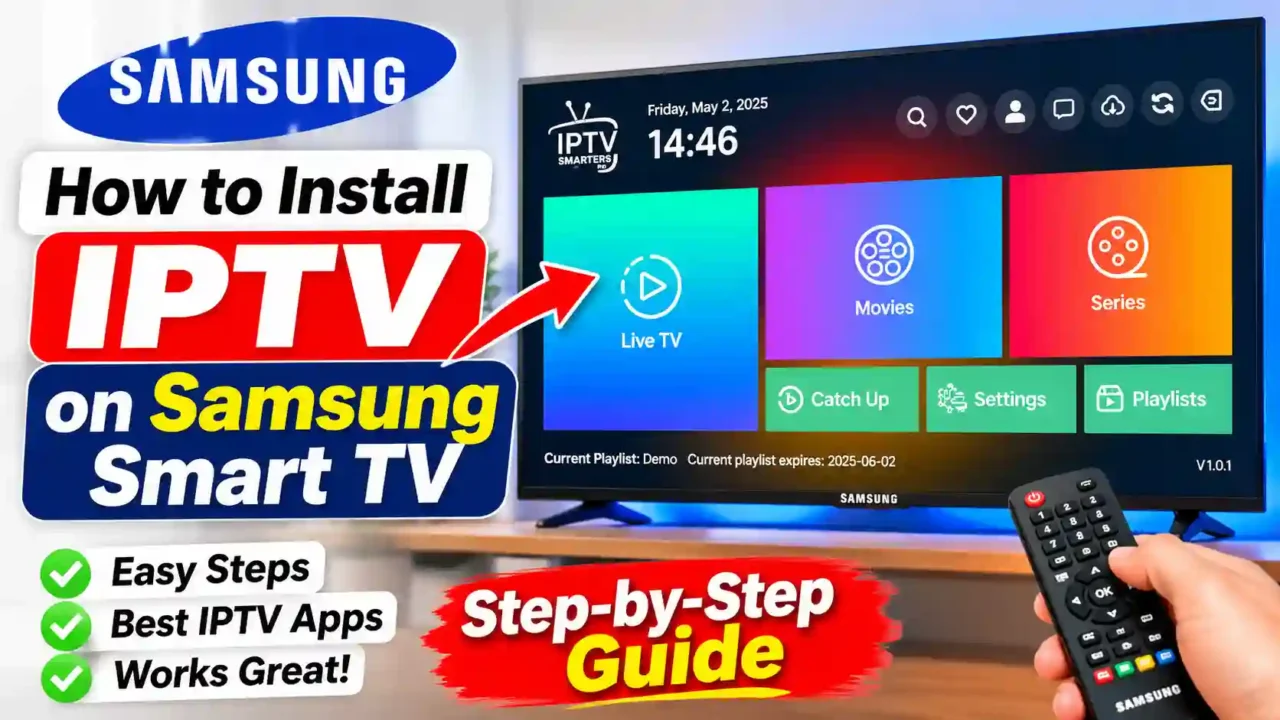
What you need before you start
First, check that your TV can use the Samsung App Store. Most Samsung Smart TVs made from around 2016 onwards run Tizen and support it. Older models and some budget sets may have fewer apps, so the exact list depends on your model and region.
Next, gather your details. Your IPTV provider should send you a playlist link, usually an M3U URL, or a set of Xtream Codes details. Those include a server address, a username and a password. Some providers also send an EPG link for the TV guide. Keep these details ready to paste.
Finally, connect the TV to the internet. A wired Ethernet cable is the most stable choice. If you use Wi-Fi, a 5 GHz connection close to the router usually performs better than a weak 2.4 GHz signal.
Why Samsung TVs work differently
If you have set up IPTV on Android, you may expect to install an APK file. That does not work on a Samsung TV. Tizen does not run Android apps, so every app comes from the Samsung App Store. The apps below are available there, and each one has its own way of connecting to your playlist.
Method 1: Install IBO Player
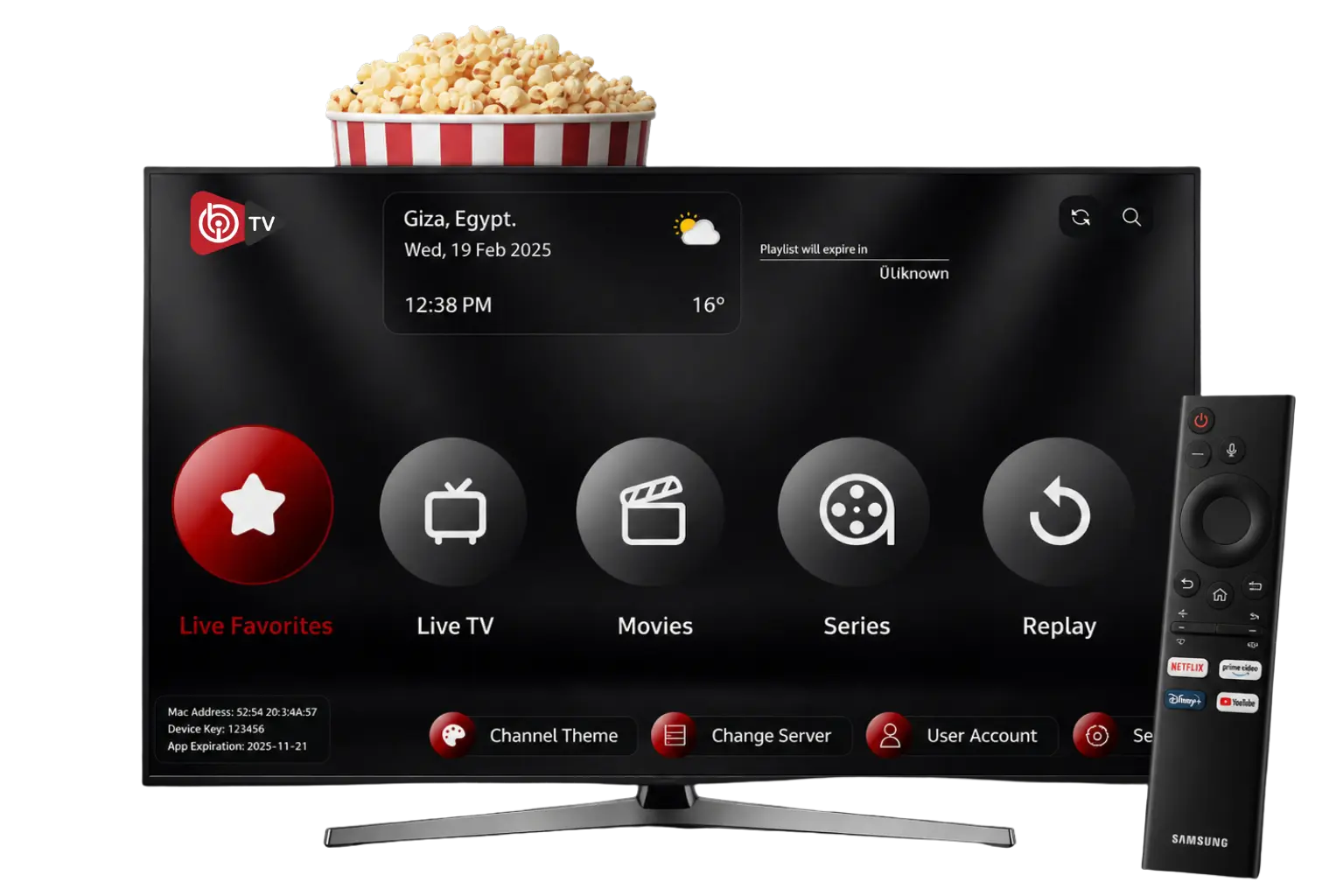
IBO Player is our first choice for Samsung TVs. It is available in the Samsung App Store, so you do not need a computer or any special tools. It connects to your playlist through the TV’s MAC address and a device key.
- Press the Home button on your Samsung remote and open Apps.
- Use the search icon, type IBO Player, and select it from the results.
- Choose Install, then open the app once it has installed.
- The start screen shows your MAC address and Device Key. Write both down, or take a photo.
- On a phone or computer, open the IBO Player activation page. Enter the MAC address and Device Key, then add your M3U link or your Xtream Codes details.
- Go back to the TV, close the app completely, and open it again.
Your channels should appear after the restart. If your provider sent an EPG link, add it in the settings, then restart once more so the guide fills in.
Method 2: Install IBO Player Pro
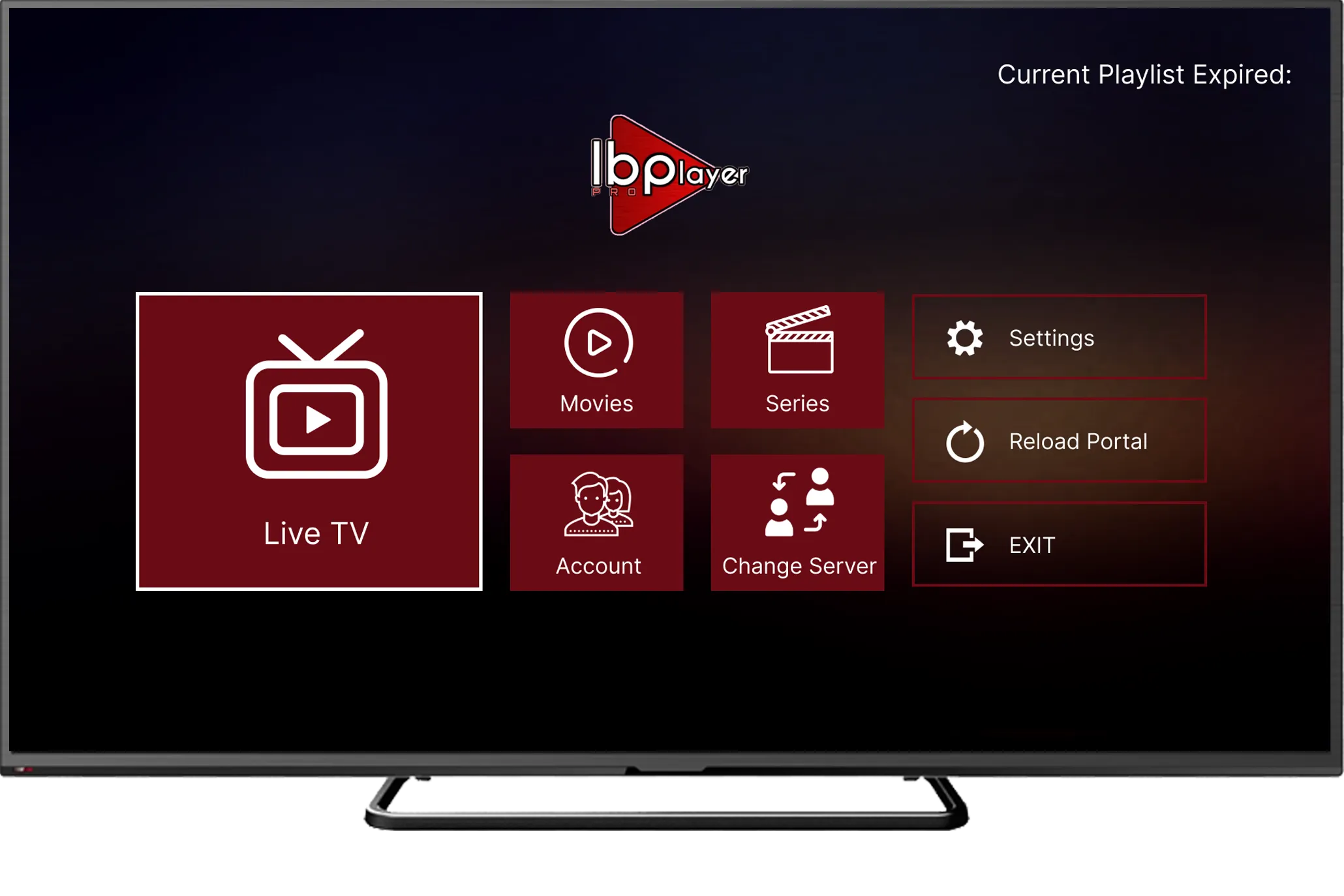
IBO Player Pro is our second choice. It follows the same pattern as IBO Player, so the steps feel familiar. It is also available in the Samsung App Store, and it uses the same kind of device key and MAC address to link your playlist.
- Open the Samsung App Store and search for IBO Player Pro.
- Install the app and open it on the TV.
- Note the MAC address and Device Key shown on the start screen. Use the values from the app itself, not the network settings of your TV.
- Visit the activation page listed in the app, enter the codes, and add your playlist.
- Close the app on the TV, reopen it, and check that your channels load.
Some versions and activation options may involve a trial or a paid licence. Check the current terms in the app before you rely on any feature, so there are no surprises later.
Method 3: Install IPTV Smarters Pro
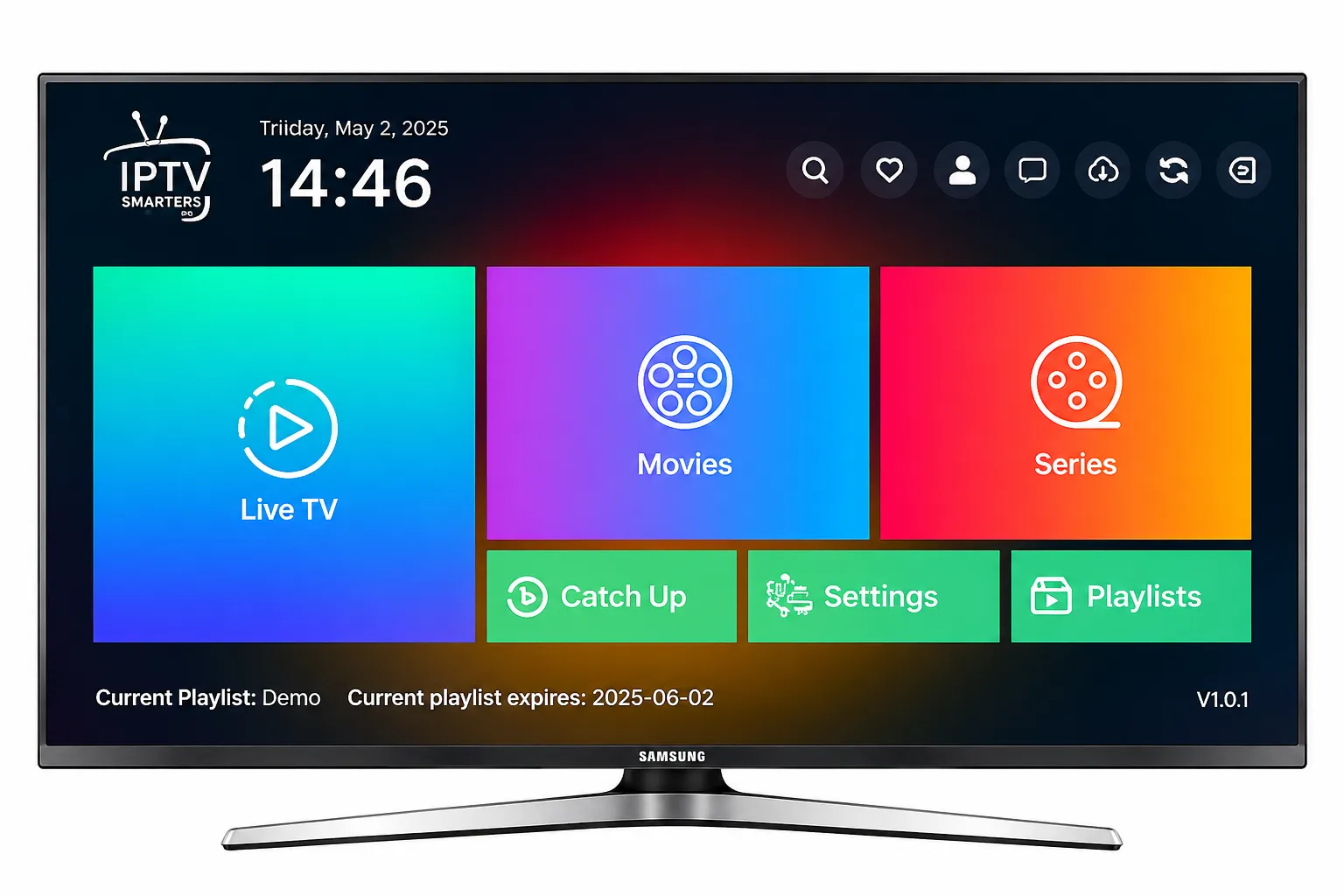
IPTV Smarters Pro is our third choice. It is popular on many devices, and it works well with Xtream Codes logins, so you do not need a MAC address for this method.
- Open the Samsung App Store and search for IPTV Smarters Pro.
- Choose Install, then open the app.
- Select the option to log in with Xtream Codes.
- Enter the server address, username and password from your provider, then sign in.
- Wait for the channels to load. If you use an M3U link instead, choose the M3U option and paste the full address.
IPTV Smarters Pro may not appear in every Samsung App Store, because availability varies by model and region. If you cannot find it, try IBO Player or IBO Player Pro first. Those are usually the simplest routes on Samsung TVs.
If your favourite app is missing
Some popular Android players, including TiviMate, are not available on Samsung TVs. If you prefer that layout, you can connect a small Android TV box to an HDMI port on your Samsung TV and run the player there. Your playlist and login details stay the same. Only the device changes.
Fixing the problems people run into most
Most setup problems fall into a few groups. Work through them calmly, and test after each change.
- The app does not load channels. Check the playlist link or the Xtream details for typing errors, and remove any extra spaces.
- The MAC address does not match. Make sure you used the address shown in the app, not the one in the TV’s network settings.
- The guide is empty. Add the EPG link if your provider sent one, then restart the app and wait a few minutes.
- Channels freeze or buffer. Move the TV to a wired connection if you can, restart the router and the TV, and test again at a quiet time of day.
- The app is missing from the store. Your model or region may not support it, so try another app from the list above.
Keep your TV safe during setup
Only install apps from the official Samsung App Store, and enter your provider details only on websites you can verify. Be careful with links sent by strangers, and never share your login details with anyone who asks for them. Keep the TV software and your apps up to date, because updates often fix bugs and improve security.
Frequently asked questions
Which IPTV app should I try first on a Samsung TV?
Start with IBO Player. It is available in the Samsung App Store, and its setup is short. If you want more options, IBO Player Pro is the next step.
Do I need a MAC address for every app?
IBO Player and IBO Player Pro use a MAC address and Device Key. IPTV Smarters Pro can use an Xtream Codes login instead, so you may not need a MAC address for that app.
Can I watch IPTV on my Samsung TV with an Ethernet cable?
Yes. A wired connection is often the most stable option, especially for HD and 4K channels or evening viewing.
Why are my channels not showing after I restart the app?
Check that the playlist or login details are correct, make sure the activation step is complete, and confirm that the TV is connected to the internet. If it still fails, contact your provider’s support team.
Setting up IPTV on a Samsung Smart TV is easier than it may first appear. Start with IBO Player, move to IBO Player Pro if you want another option, and use IPTV Smarters Pro if your store offers it. Keep your playlist details handy, use a stable connection, and check the guide. With those steps in place, your channels will be ready on the big screen.